SEEAT.app Restaurant User Guide
This guide covers the complete workflow from account setup to daily reservation management.
Chapter 1: Getting Started
Sign In
Enter your Email and password on the login page, or click "Continue with Google" to sign in quickly. Restaurant owners should click the orange "Sign in as Restaurant Owner" link at the bottom of the page.
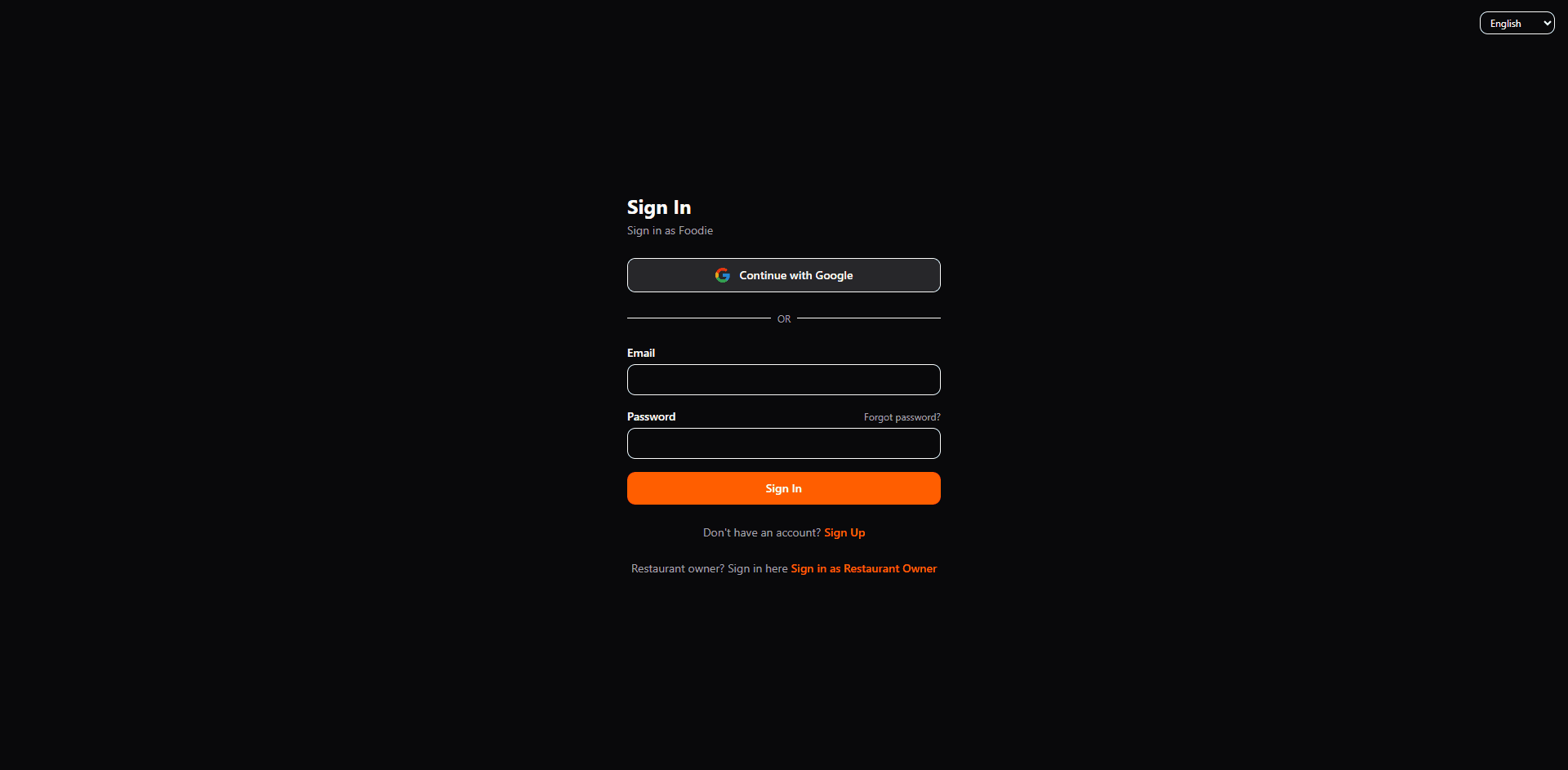
- •No account yet? Click "Sign Up" to create a new one.
- •Forgot your password? Click "Forgot password?" next to the password field to reset it.
- •Make sure to use the "Restaurant Owner" portal, or you will enter guest mode instead of the restaurant dashboard.
Register Your Restaurant
After your first login, the system will guide you to search for and link your restaurant. Enter the restaurant name or address in the search bar — the system matches it via Google Places.
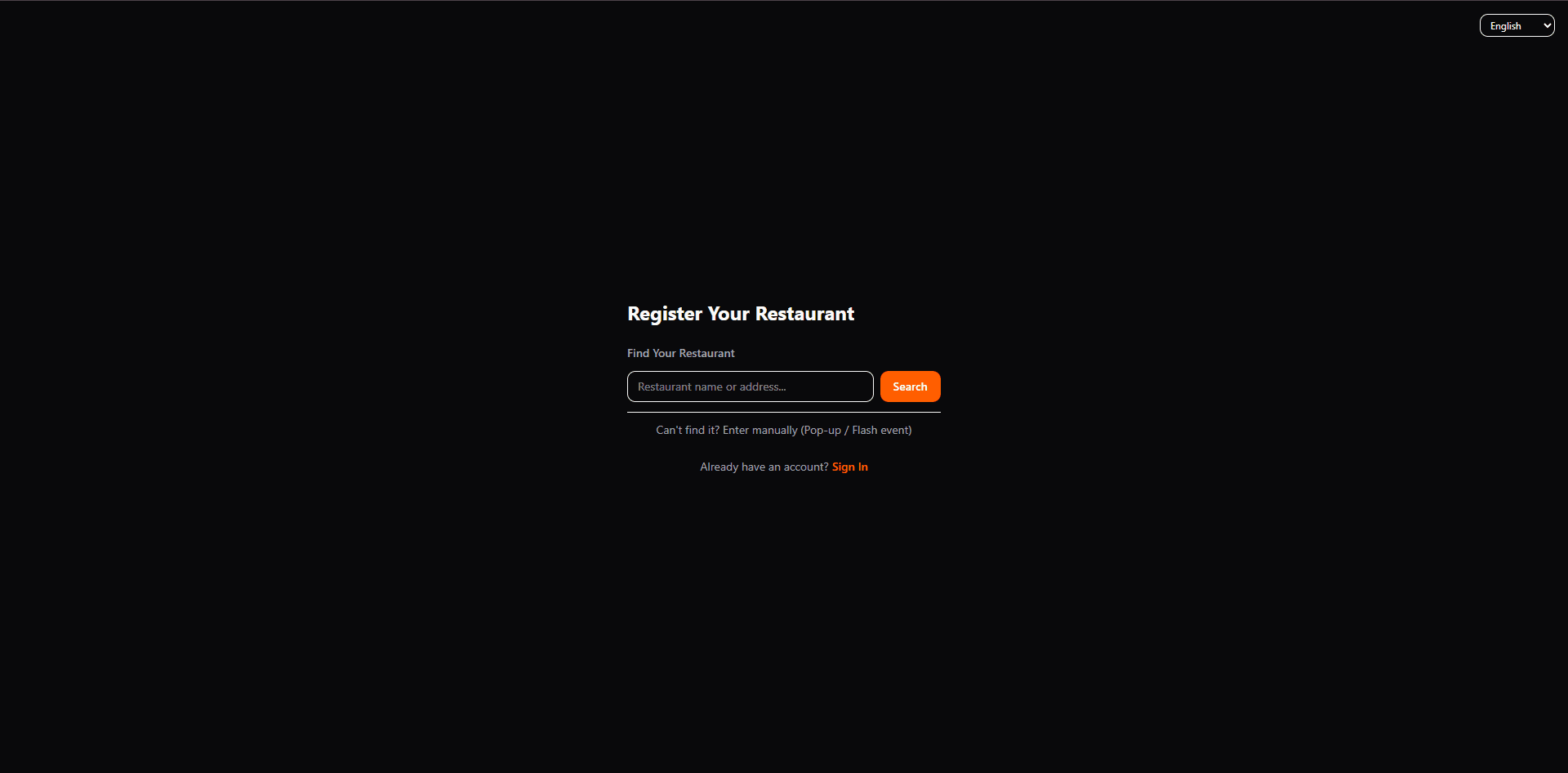
- •Can't find your restaurant (e.g., pop-up or flash events)? Click "Can't find it? Enter manually" to input the name and address manually.
- •For best results, enter the full restaurant name when searching.
Confirm Restaurant Info
Once the search results appear, confirm the name and address are correct, then click "This is my restaurant" to complete the linking.
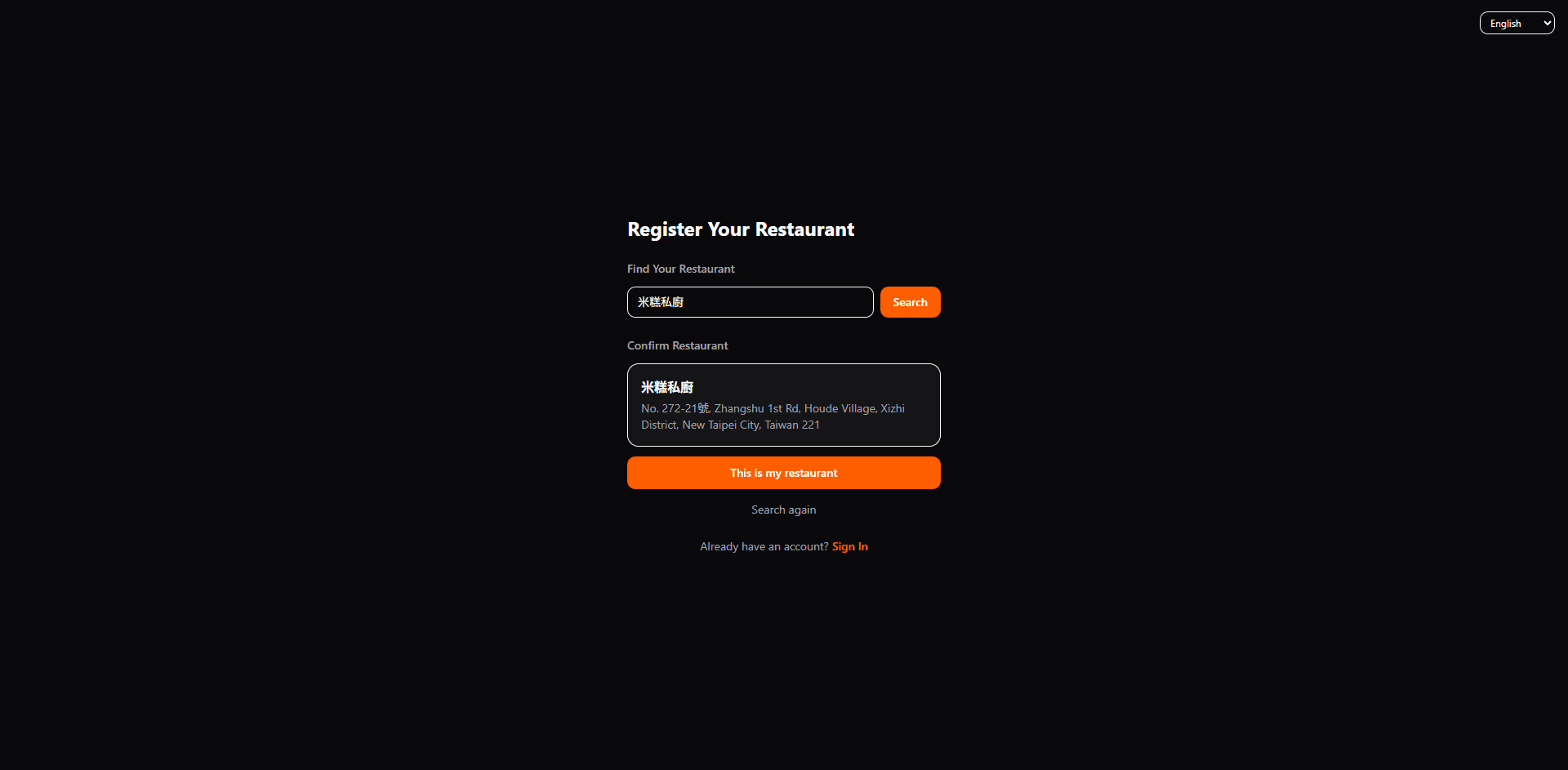
- •If the displayed information is incorrect, click "Search again" to redo the search.
- •Basic restaurant info comes from Google Maps; you can add a logo, banner, and booking description in Settings.
Email Verification
After creating your account, the system sends a verification email. Open the email and click the verification link to complete the process and enable normal login.
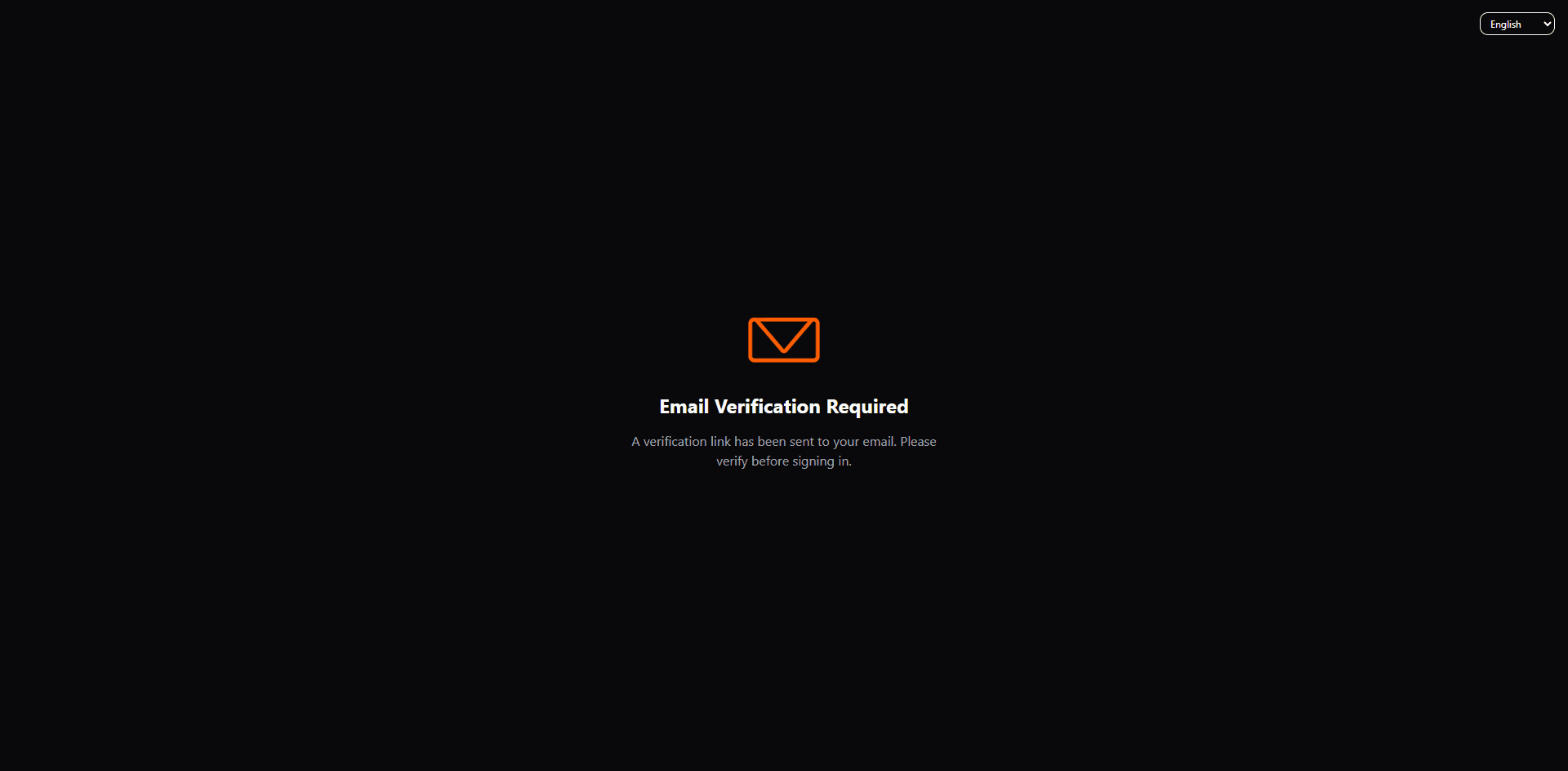
- •Didn't receive the email? Check your spam/junk folder.
- •Verification links have a time limit. If expired, re-start the login flow to request a new link.
Chapter 2: Initial Setup
Quick Setup Wizard
Want to skip manual configuration? Launch the setup wizard to complete business hours, table layout, and reservation rules in just a few minutes.
Dashboard Overview
After verifying and first logging in, you arrive at the Dashboard — the core page for daily reservation management. Complete three setup steps in order: Floor Plan → Reservation Page → Staff Accounts.
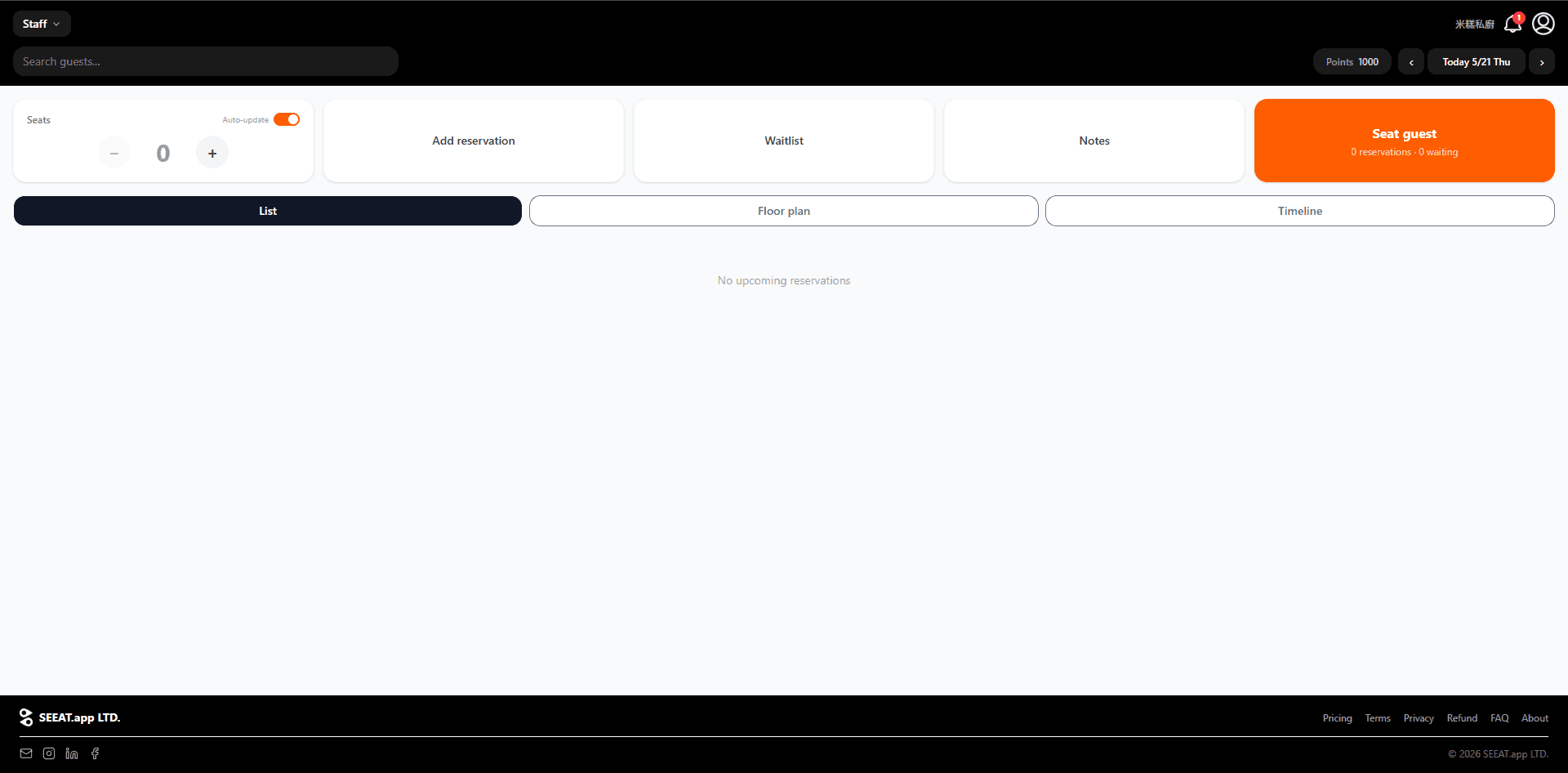
- •Top navigation: staff switcher dropdown on the left; restaurant name, notification bell, points balance, and date navigator on the right.
- •Quick-action cards: Seats (available count), Add reservation, Waitlist, Notes, Seat guest.
- •View toggle: List, Floor plan, Timeline.
- •The orange Seat guest card (top right) shows 'X reservations · Y waiting' for a quick seating overview.
Floor Plan Setup
Go to Settings (account icon, top right) → Floor Plan to build your restaurant's seating layout. The floor plan lets you and your staff see real-time table occupancy and avoid booking conflicts.
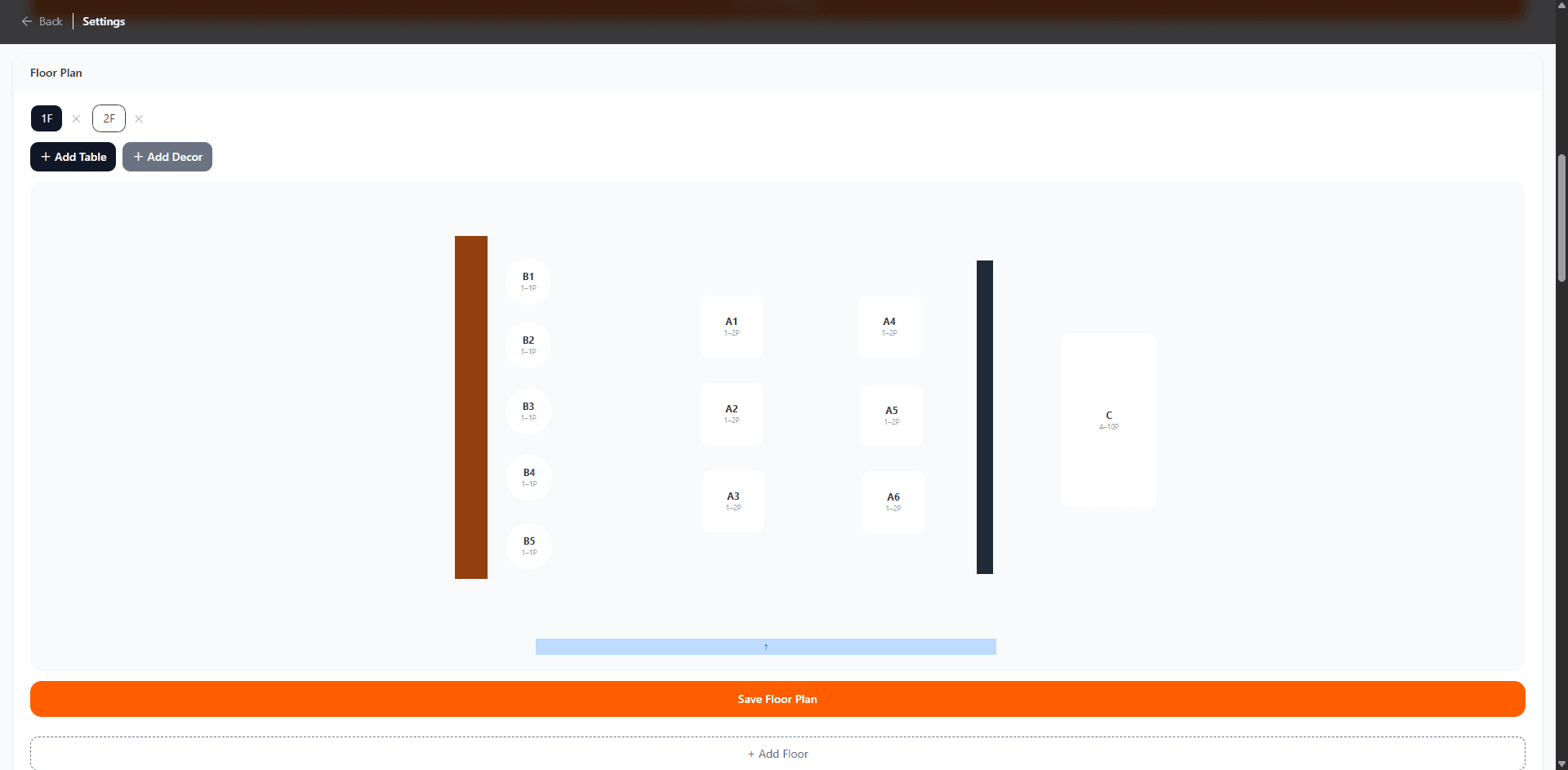
- •Click '+ Add Table' to add a table: set the label (e.g., A1, B3), min/max capacity, and shape (round or square).
- •Click '+ Add Decor' to add décor elements: walls, bar counters, pillars, doors, etc.
- •Drag elements to position them; drag corner handles to resize.
- •If you have multiple floors, click '+ Add Floor' at the bottom (e.g., 1F, 2F).
- •Click 'Save Floor Plan' when done.
- •Enable 'Mergeable' on a table to allow it to be combined with other mergeable tables for larger parties. Mergeable tables show a blue border with a ⇌ icon on the floor plan.
- •Ideal for bar stools, long counters, or flexible seating rows — the system automatically combines mergeable tables to accommodate any party size.
Reservation Page Setup
Go to Settings → Reservation Page to configure your public booking page. Guests can make reservations online through this page.
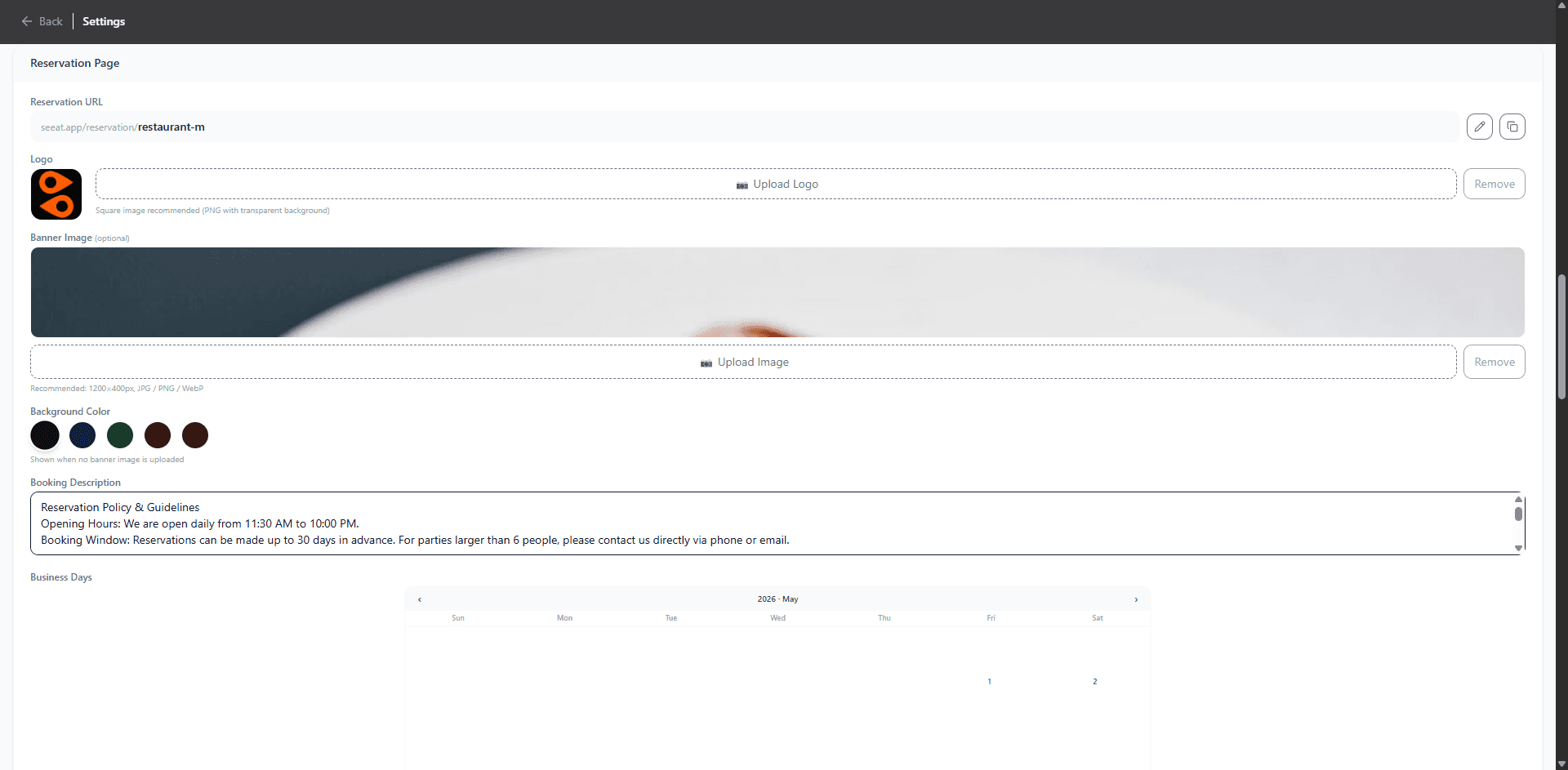
- •Reservation URL: Set your unique link slug and click the copy icon to share with guests.
- •Logo: Upload a square icon (transparent background PNG recommended) displayed at the top of the booking page.
- •Banner Image: Upload a restaurant banner (1200×400px recommended).
- •Booking Description: Enter booking policies, hours, or notes visible to guests before they book.
- •Business Days: Select open dates on the calendar; guests cannot book on unmarked dates.
Staff Accounts & PIN
Go to Settings → Staff Accounts to add staff. Staff don't need individual SEEAT.app accounts — just add their name here so they can select their identity on the Dashboard.
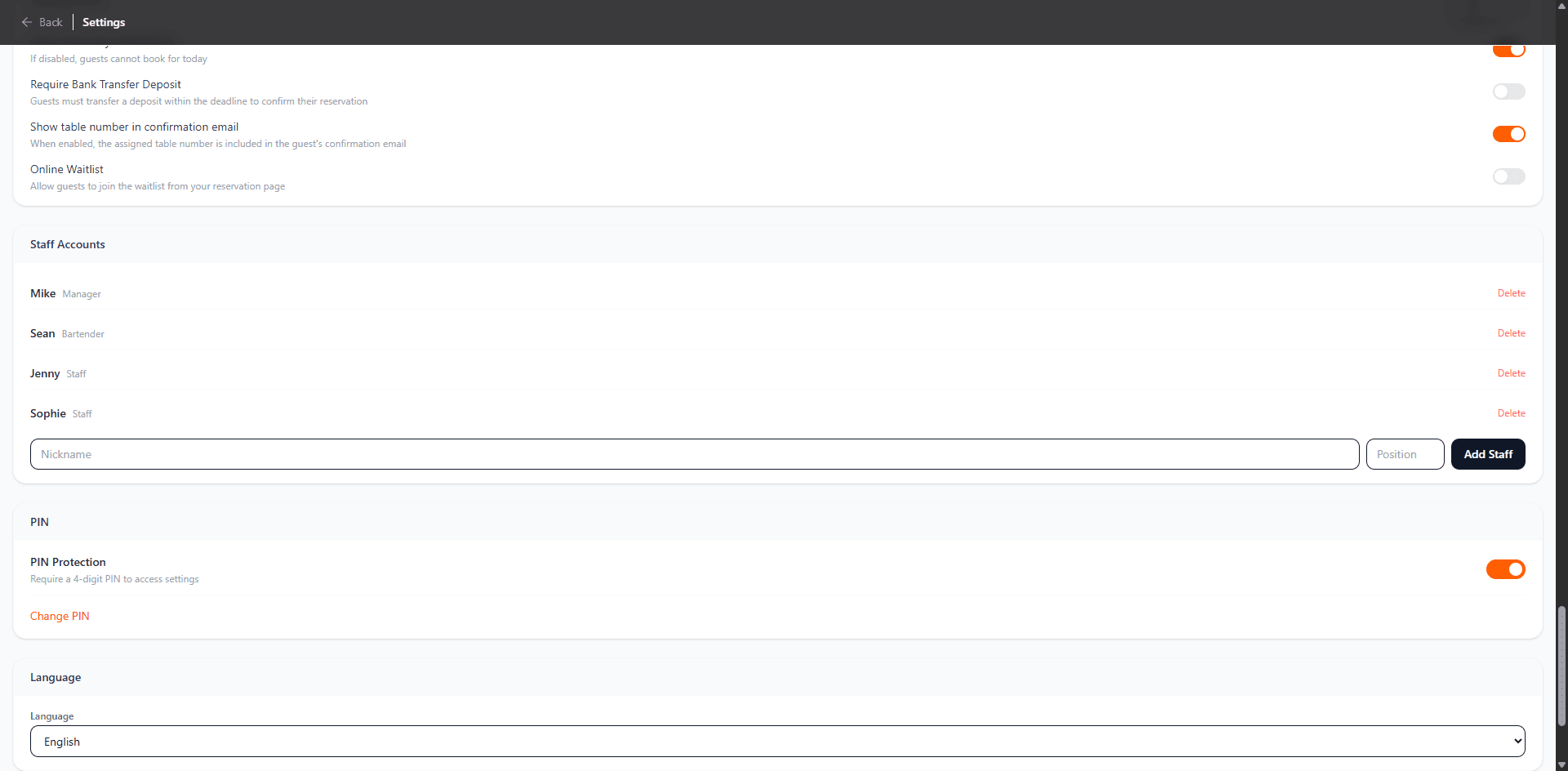
- •Enter a Nickname and Position (e.g., Manager, Bartender, Staff), then click 'Add Staff'.
- •Staff names appear in the dropdown at the top left of the Dashboard for shift workers to select.
- •PIN Protection: When enabled, a 4-digit PIN is required to access Settings. Click 'Change PIN' to update.
- •Language: Switch the Dashboard display language (13 languages currently supported).
Chapter 3: Daily Operations
Dashboard Daily Operations
On a business day, the Dashboard list shows all reservations in ascending time order. Each reservation's status button can be tapped to switch state.
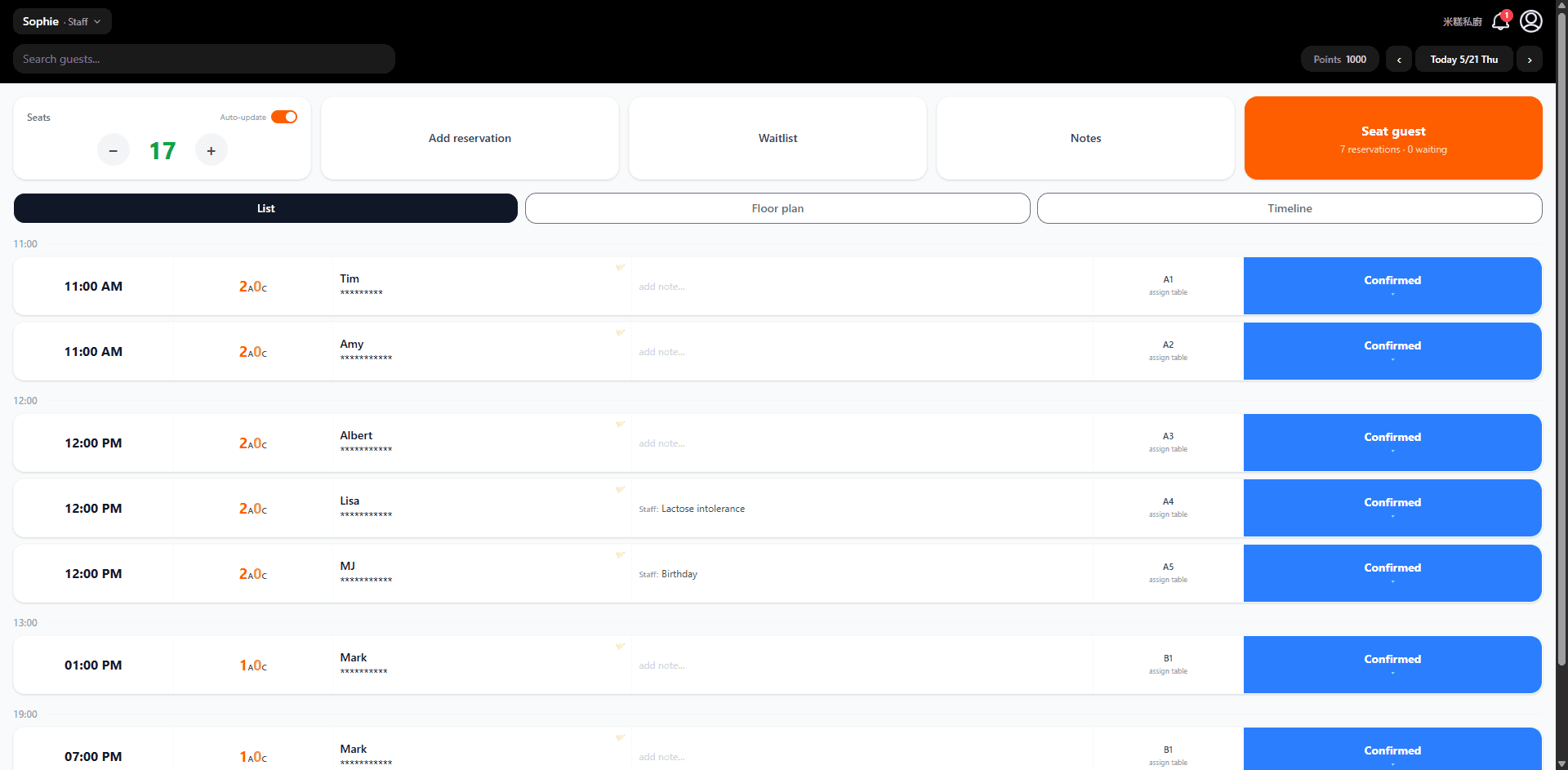
- •Seats counter: displayed in green. Adjust manually with − / +, or enable Auto-update to calculate from floor plan state.
- •Each row shows: time, adult (A) / child (C) count, guest name, notes, assigned table, and status button.
- •Status flow: blue Confirmed → orange Seated → grey Done.
- •The orange Seat guest card (top right) shows today's pending reservations and waitlist count — tap to start seating.
Add a Reservation
Tap 'Add reservation' at the top of the Dashboard to manually create a reservation for walk-in or phone bookings.
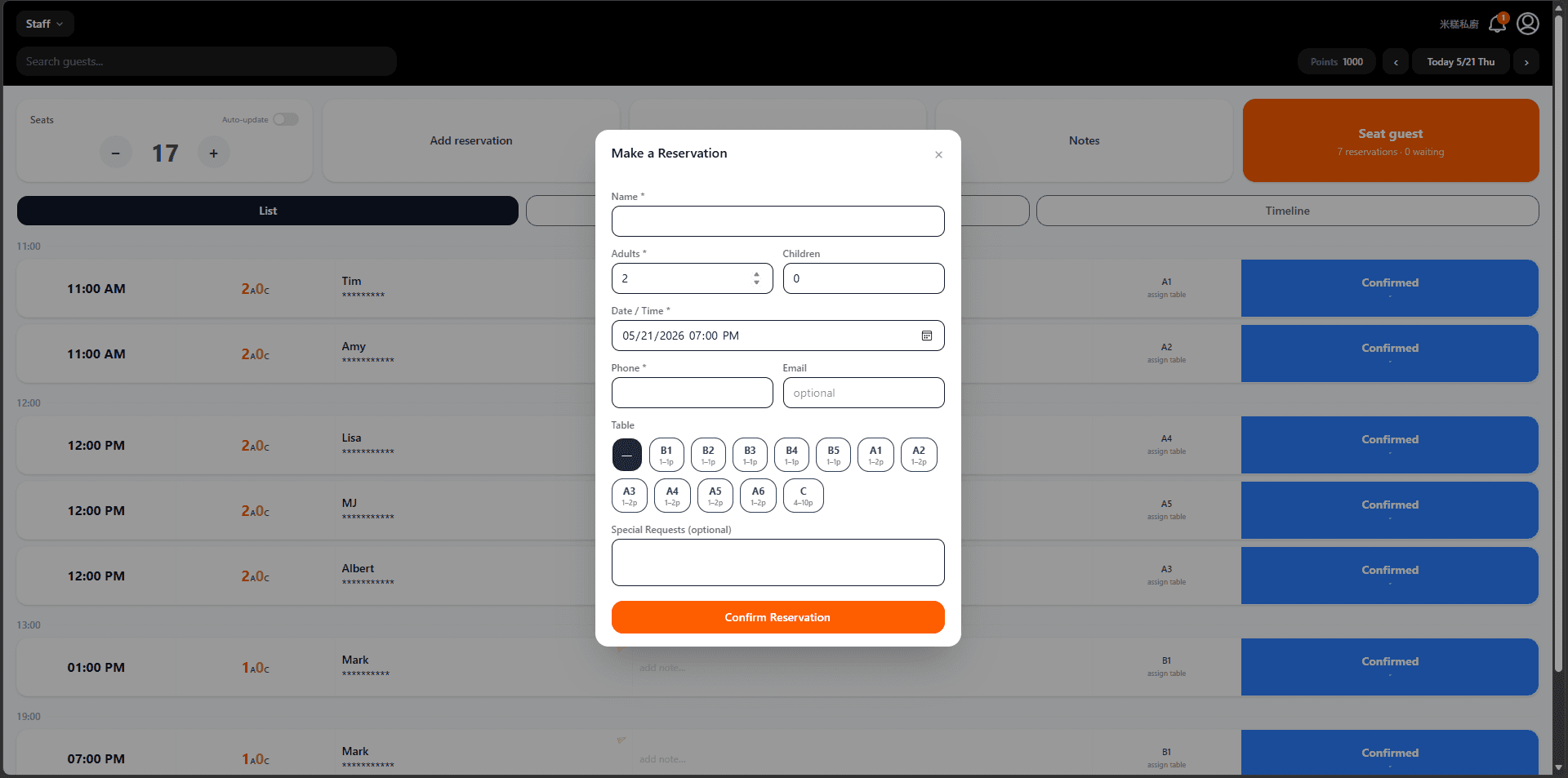
- •Required fields: name, adult count, date/time, phone. Email is optional.
- •Table selection: tables already booked for the same time slot are greyed out to prevent double-booking.
- •Special Requests: note any guest requirements (e.g., birthday setup, allergy info).
- •Click 'Confirm Reservation' to save; the reservation immediately appears in the day's list.
- •Tap '⇌ Auto-assign' to let the system pick the best table automatically: a single table is always preferred; if none fits the party, it selects the fewest mergeable tables needed.
Floor Plan View
Switch to the 'Floor plan' view to see all tables' real-time status — ideal for quickly identifying available tables when seating guests.
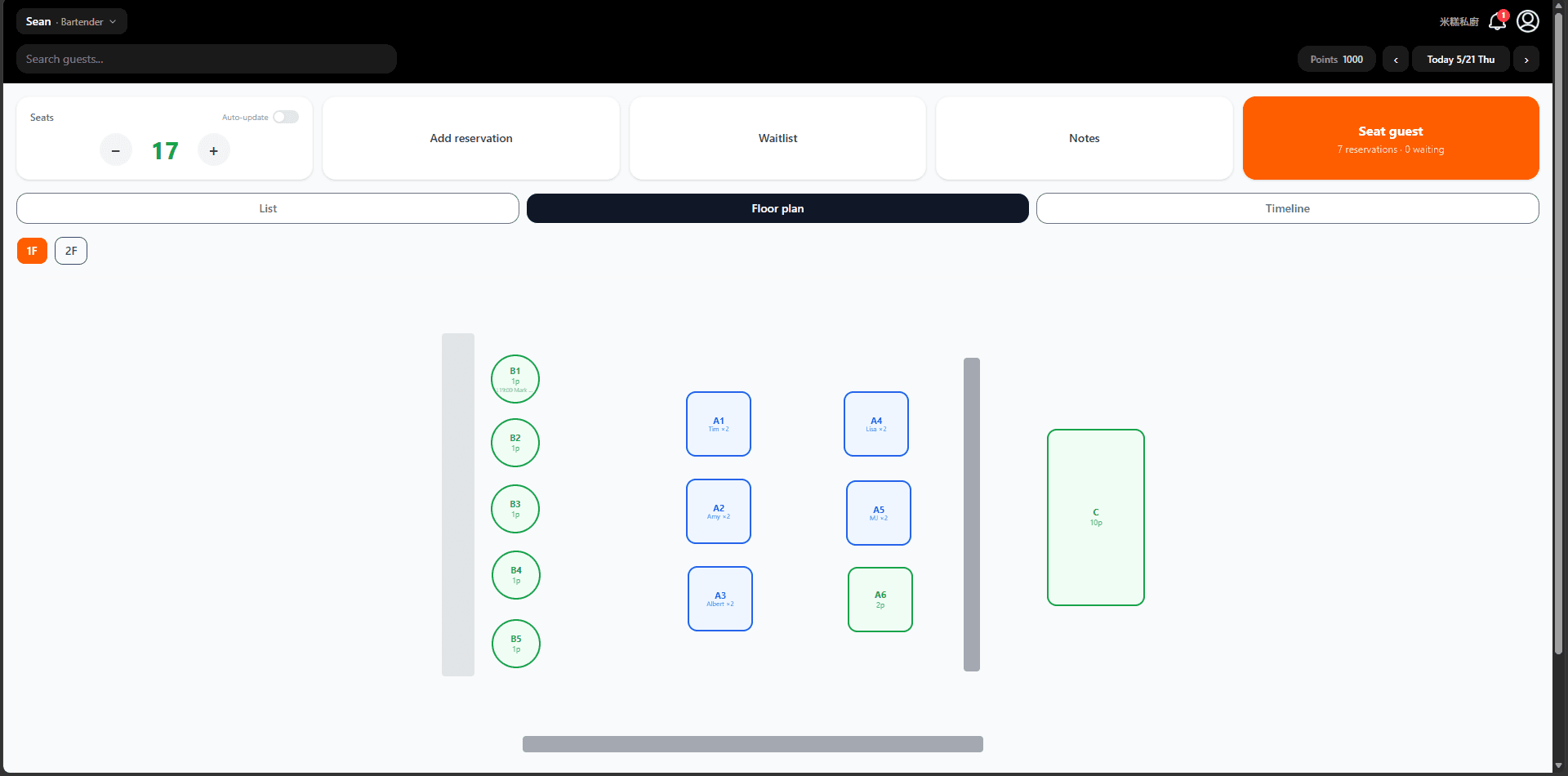
- •Green circle = round table, currently unoccupied; number shows capacity range.
- •Green square = square table, currently unoccupied.
- •Blue border = table has an upcoming confirmed reservation; shows guest name and count.
- •Orange border = currently occupied (Seated status).
- •Use the 1F / 2F tabs at the top to switch floors. Tap a table to view details or update status.
Waitlist Management
The waitlist is for walk-in guests without a reservation. Tap 'Waitlist' at the top of the Dashboard to open the waitlist panel.
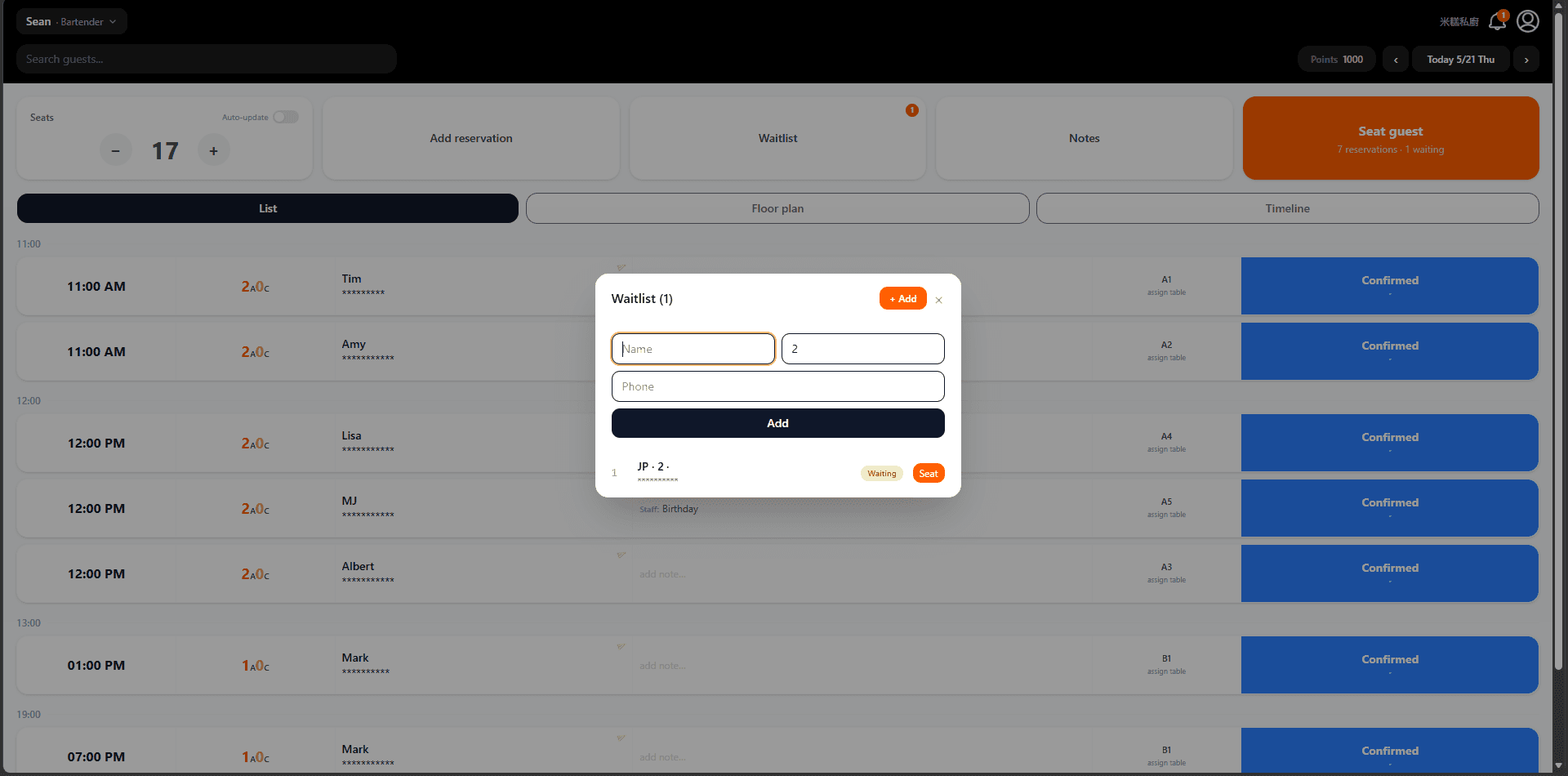
- •Tap '+ Add' in the top right to add a guest: name and party size (required), phone (optional).
- •The waitlist is ordered by arrival; each entry shows position, name, count, phone, and status label.
- •Tap 'Seat' to convert a waitlist entry to a reservation and mark as seated.
- •The Waitlist button shows a red badge when guests are waiting.
- •Guests can also join the online waitlist through your reservation page (enable in Settings).
Switch Staff
Tap the staff name at the top left of the Dashboard to expand the staff list and select who is on shift.
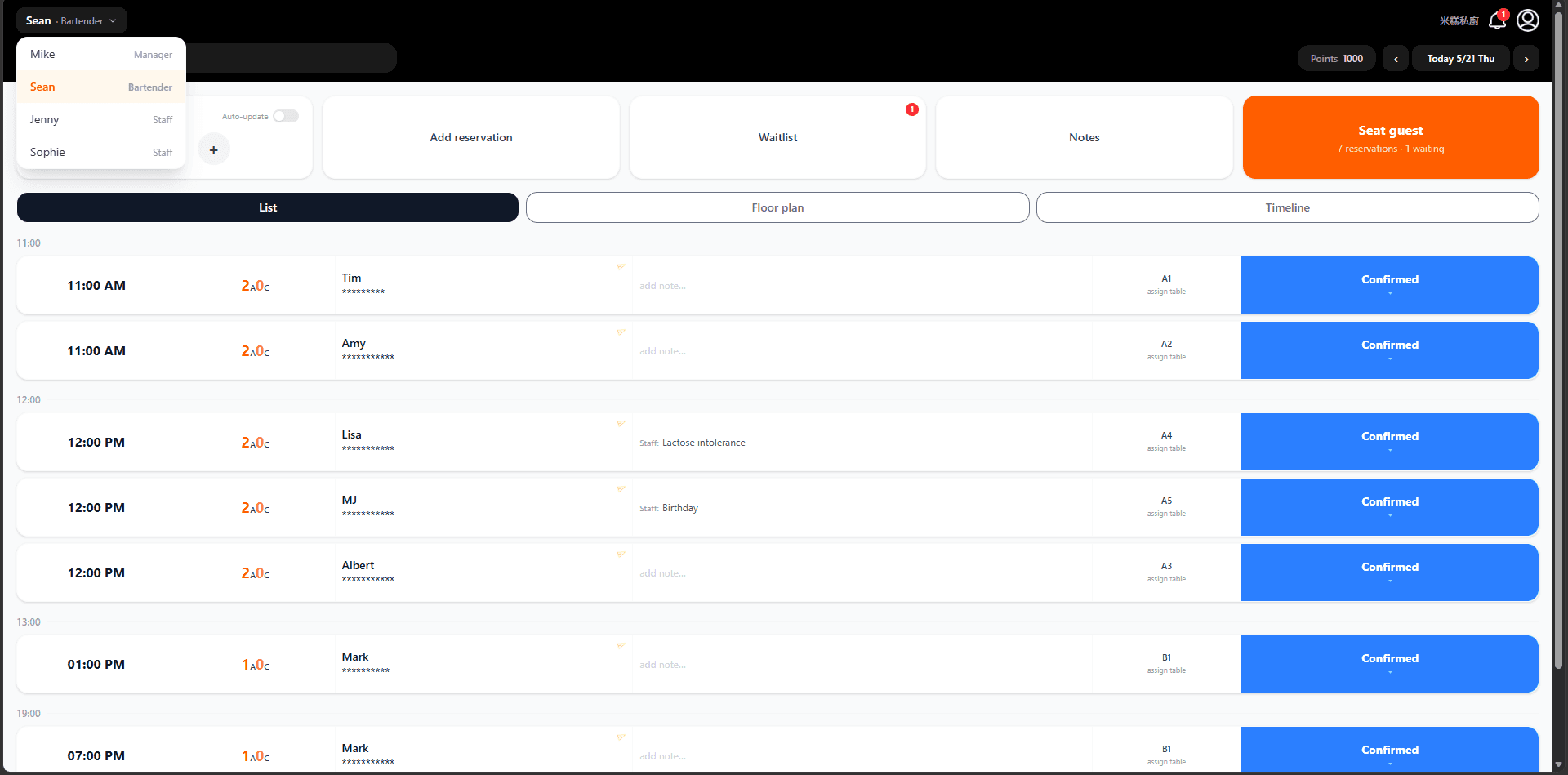
- •The currently selected staff member is highlighted in orange.
- •Switching staff requires no password — ideal for multi-staff tablet sharing during shifts.
- •All actions under a staff identity (reservations, status changes, notes) are recorded under that staff member for later review.
- •To add or remove staff, go to Settings → Staff Accounts.
Chapter 4: Advanced Integration
External API Seat Sync
SEEAT.app provides an API that lets third-party reservation systems automatically report available seat counts. Go to Settings → API Integration to generate a key.
- •In Settings → API Integration, enter a label (e.g. 'TableCheck') and click 『Generate Key』. Copy and save the key immediately — it cannot be recovered later.
- •Your google_place_id is shown in the API Integration panel — you will need it in every API call.
- •Send a PUT request to https://seeat.app/api/v1/external/seats with header X-Api-Key: sk_... and body: { "google_place_id": "ChIJ...", "available_seats": 5 }. The count updates instantly on Dashboard and Discover.
- •To revoke a key, go to Settings → API Integration and click 『Revoke』 next to the key.
⚠️ Important: If your third-party system auto-reports seat counts, make sure to turn OFF 「Auto-update」 on the Dashboard — having both active simultaneously will cause conflicting seat data. Use only one source at a time.
AI Assistant Integration (Claude MCP)
SEEAT.app supports the Model Context Protocol (MCP), letting you control your restaurant directly through Claude AI — check reservations, update seat counts, send push notifications, and more, all through natural conversation.
- •In Settings → API Integration, generate an API key (if you haven't already). Copy it immediately — it cannot be retrieved later.
- •Find your Claude Desktop config file: on Windows at %APPDATA%\Claude\claude_desktop_config.json, on Mac at ~/Library/Application Support/Claude/claude_desktop_config.json. Create the file if it doesn't exist.
- •Add the following to your config file: { "mcpServers": { "seeat": { "type": "http", "url": "https://seeat.app/api/mcp", "headers": { "Authorization": "Bearer sk_your_key" } } } }
- •Restart Claude Desktop. You can now ask questions directly in chat: 「How many reservations do I have today?」 or 「Update available seats to 3」.
AI Smart Mode
Once configured, an "AI" button appears at the bottom-right of your Dashboard. Manage your restaurant in natural language using Anthropic Claude, OpenAI ChatGPT, or Google Gemini.
- •Go to Settings → AI Smart Mode section.
- •Choose your preferred AI provider: Anthropic Claude, OpenAI ChatGPT, or Google Gemini.
- •Get an API key from the provider's site (Claude: console.anthropic.com, ChatGPT: platform.openai.com, Gemini: aistudio.google.com), paste it in the corresponding field, and save.
- •After saving, an "AI" floating button appears at the bottom-right of your Dashboard. Click it to open the chat panel.
- •Type commands in any language, for example: 「How many reservations do I have today?」, 「Set available seats to 5」, or 「Show the waitlist」.
Reservation System Vendor API
Reservation system vendors can push real-time seat availability and booking URLs for their restaurant clients to SEEAT.app via a dedicated partner API. Restaurants appear on the Discover page without a SEEAT.app account — only a google_place_id and a vendor API key are needed.
- •Email service@seeat.app to express your partnership interest. Our team will provide a vendor API key and documentation at no cost. Integration is completely free.
- •Find a restaurant's google_place_id: search for it on Google Maps, click on the result, and look for the place_id parameter in the browser URL; or use Google's Place ID Finder at developers.google.com/maps/documentation/javascript/examples/places-placeid-finder.
- •Send a POST request to https://seeat.app/api/v1/partner/seats with header X-Partner-Key: <your-key> and body: { "google_place_id": "ChIJ...", "available_seats": 12, "reservation_url": "https://..." } (reservation_url is optional).
- •Once updated, the restaurant immediately appears on the Discover page with real-time seat data for nearby users. All restaurants under a vendor share the same API key.
- •Integration and discovery are completely free. SEEAT.app charges no fees to vendors or their restaurant clients.